How to Log In
For first time users
You may log in on the Web from any computer that has Internet access, or come to any SJR State campus for assistance.
-
Go to MySJRstate
Click on the "MySJRstate" button in the upper left-hand corner.

MySJRstate button on the College homepage. -
Click on the User Acceptance Policy
Click on "FIRST TIME USER ACCEPTANCE POLICY" and follow the steps.
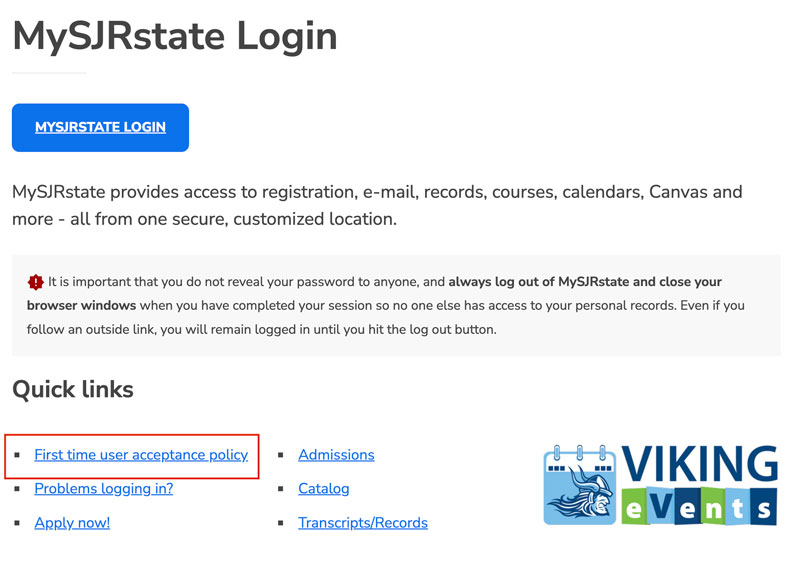
Select the User Acceptance Policy for first time users. -
College Policy Page
Enter your Student ID, Last four digits of SSN, Date of Birth and Mailing Zip Code to move to the next page. If you do not know your Student ID, click on "Do not know your Student ID?" and input your SSN.
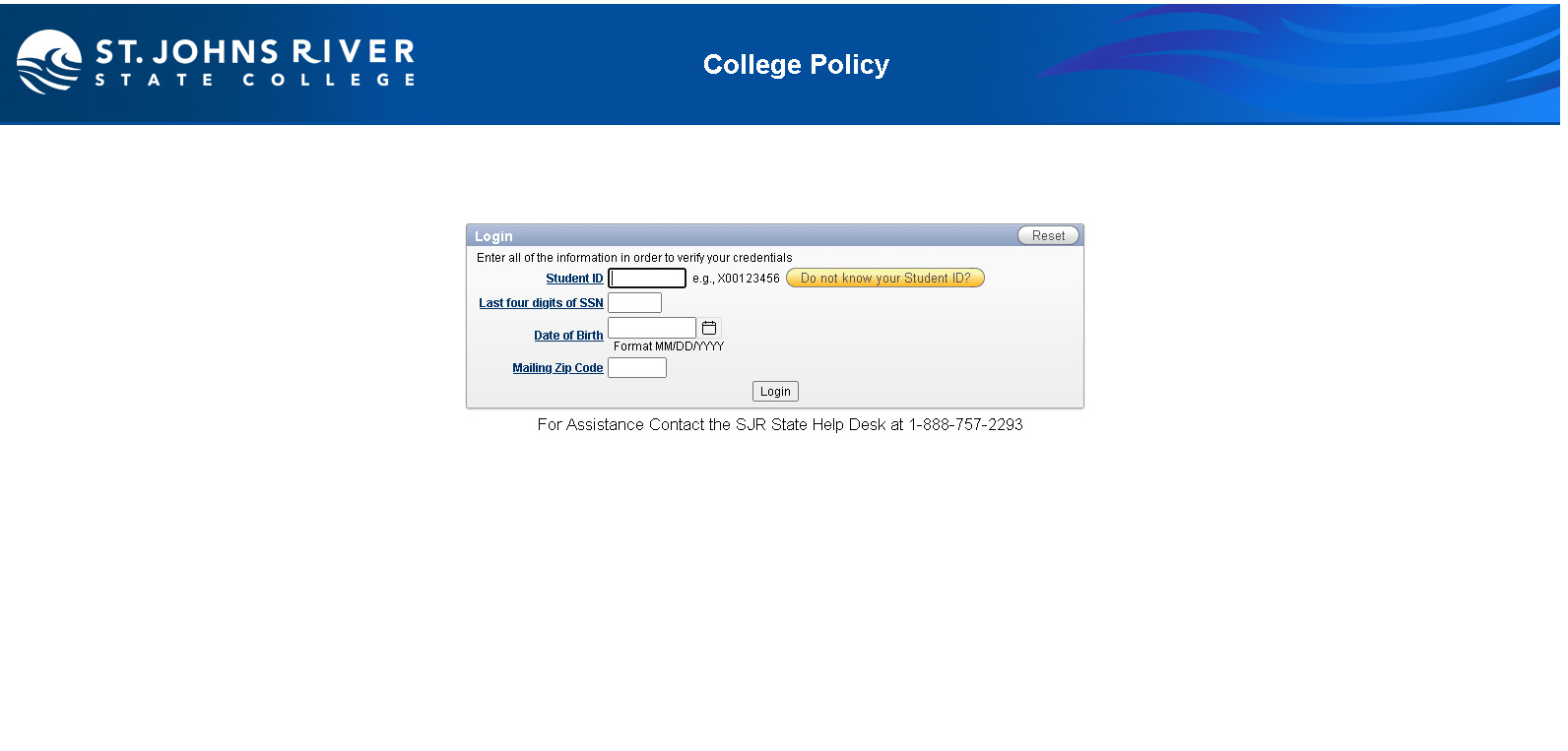
College Policy Page -
Accept the College Policy
Accept the College Policy by selecting the "Click Here to Accept Policy" link.
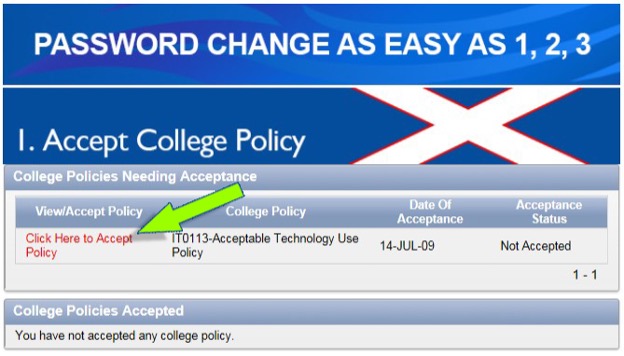
Click to read the College Policy
Select View Policy and Read then select "I Agree to Accept this College Policy" button.
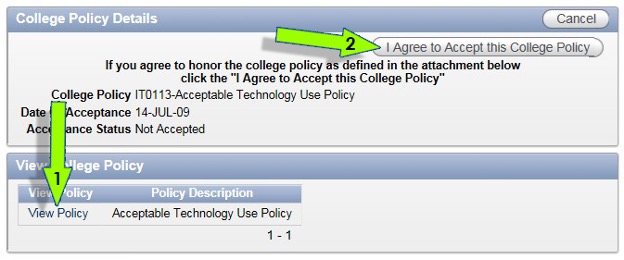
Select View Policy and Read
Once completed, a green check will be displayed in the right-hand corner of the box.
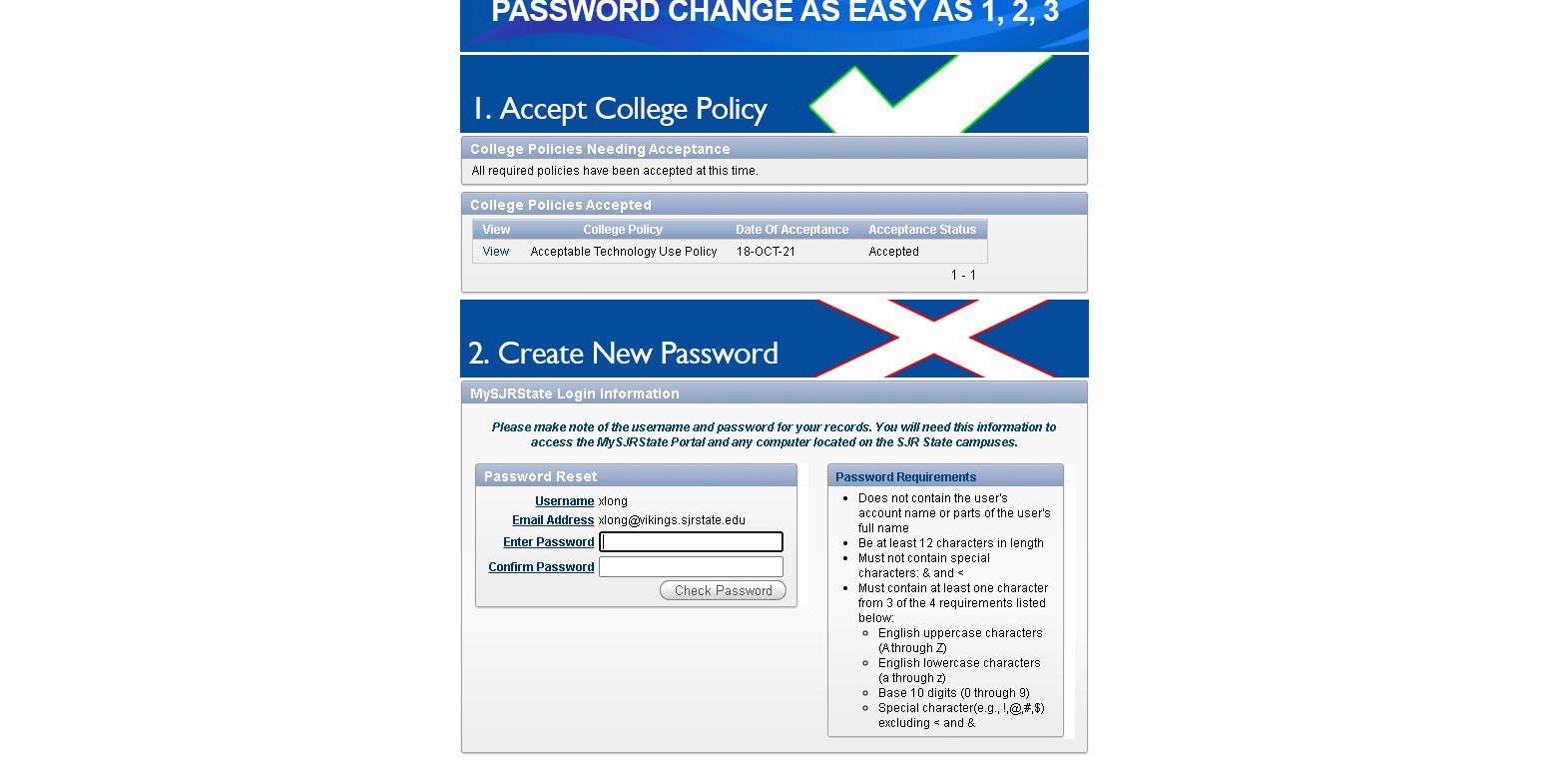
A green check will be displayed once completed -
Create a password
Follow the password requirements on the right. Your MySJRstate Login is also displayed at this point. After creating a new password, click "Check Password".

Follow the password requirements.
If the password is accepted, a green check will be displayed in the right-hand corner of the box.
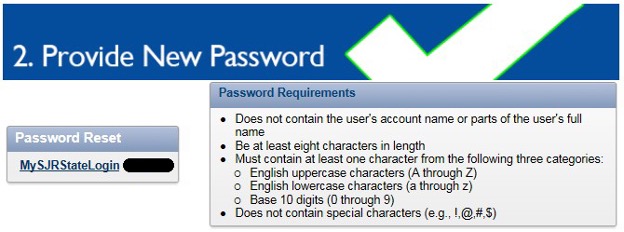
If the password is accepted, a green check will be displayed. -
Reset Password
This process may take up to 30 seconds.
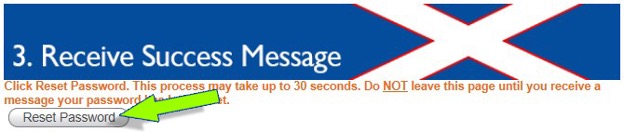
Click on the "Reset Password" button
Do Not leave this page until you receive a message your password has been reset. After receiving the success message, select the "Go to MySJRstate" button to log in to the portal.
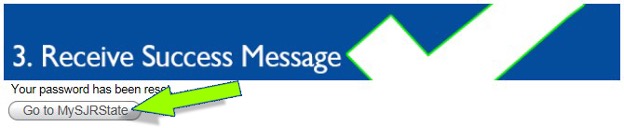
Do Not leave this page until you receive a message your password has been reset.